
Unity troubleshooting / 2026-06-04 / 7 min read
Updated 2026-06-12 · Verified as of Unity 2022.3 LTS
“No MonoBehaviour scripts in the file”: what Unity means and how to fix it
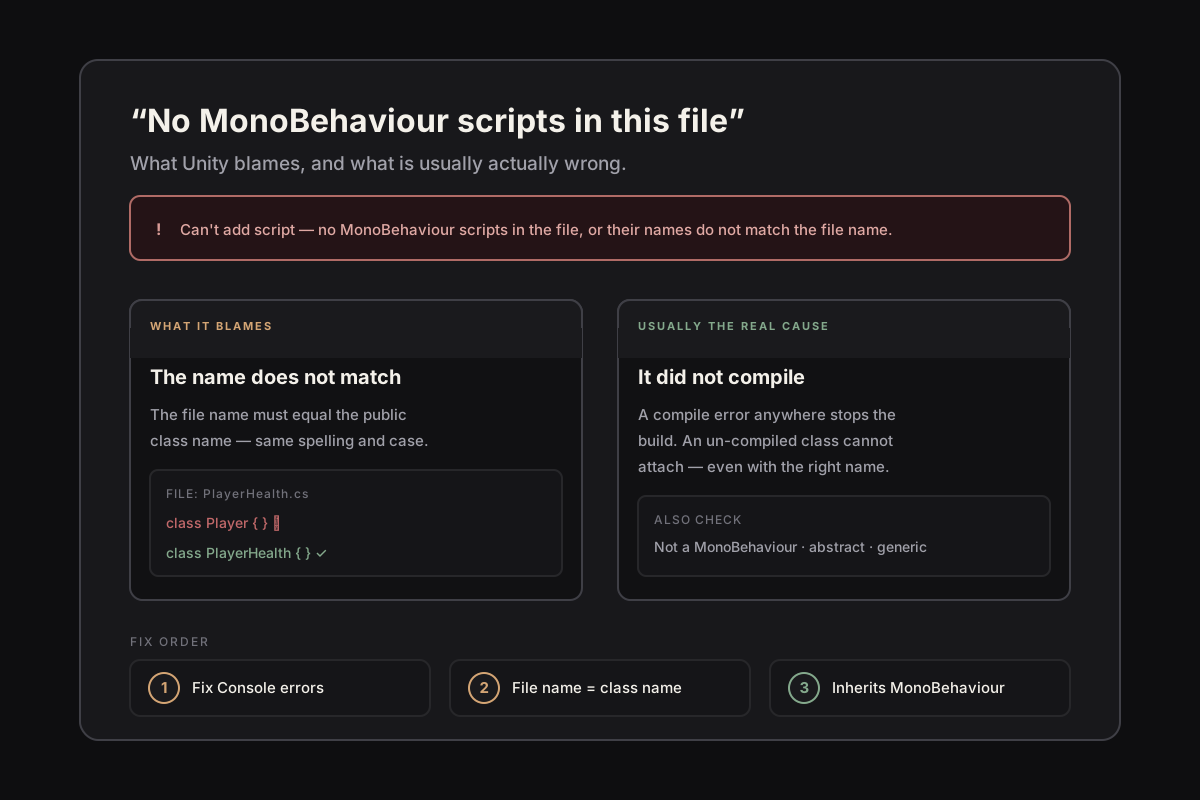
Unity's “no MonoBehaviour scripts in the file” error: check for compile errors first, then the file/class name match, then whether it's really a MonoBehaviour.
What the message actually says
You drag a script onto a GameObject, or hit Add Component, and Unity stops you: “Can't add script behaviour … No MonoBehaviour scripts in the file, or their names do not match the file name.” It is one of the first walls a new Unity developer hits, and the wording sounds vaguer than it is.
The short version: fix every compile error in the Console first — a project that doesn't compile can't attach anything, and the message won't tell you that. Then make the file name and the class name match exactly, including case. Then check the class actually inherits from MonoBehaviour and isn't abstract or generic. That order resolves it in nearly every case; the rest of this page is each check in detail.
Read it literally, because it is being literal. Unity looked inside that .cs file for a class that derives from MonoBehaviour and has a name matching the file name, and it did not find one it could use. Every cause below is a different reason that search came up empty. The catch is that the most common reason is not the one the message points at.
Cause 1: the file name does not match the class name
This is the cause the error names, and it is real. Unity requires the file name to match the public class name exactly — same spelling, same case. A class called PlayerHealth must live in a file called PlayerHealth.cs. playerHealth.cs, Player_Health.cs, or a file you renamed after creating the class will all trigger the message.
It bites most often when you rename. Renaming the file in Unity's Project window does not rename the class inside it, and renaming the class in your editor does not rename the file. After either, the two no longer agree. Fix it by making the file name and the public class name identical, then let Unity reimport.
If you are still fuzzy on what counts as a valid MonoBehaviour class here, it is worth a one-minute detour through what a MonoBehaviour actually is before chasing the rarer causes.
Cause 2: the project did not actually compile
This is the cause people lose hours to, because the error blames the file name and the file name is fine. If there is a compile error anywhere in your project, Unity cannot finish building your scripts — and a class that has not compiled does not exist as far as Add Component is concerned. So a typo in some unrelated script makes a perfectly correct PlayerHealth.cs un-attachable, with a message that says nothing about compiling.
The tell is the Console. Before you touch the file the error points at, clear the Console and look for red compiler errors anywhere in the project. Fix those first. Very often the moment the project compiles cleanly, the script you were fighting attaches without another change.
A red error icon in the bottom-right status bar, or the inability to enter Play Mode, both mean the same thing: nothing new will attach until compilation succeeds. Treat “no MonoBehaviour scripts in the file” as possibly a symptom of that, not a separate problem.
Cause 3: it is not actually a MonoBehaviour
Sometimes the class genuinely cannot be attached. It does not inherit from MonoBehaviour — it is a plain class, or it inherits from ScriptableObject, neither of which lives on a GameObject. Or it inherits indirectly through a base class that is itself not a MonoBehaviour.
A few quieter variants produce the same message. A class marked abstract cannot be attached, because Unity cannot instantiate it. A generic class cannot be attached directly. And if a single file contains several classes, Unity expects the one matching the file name to be the attachable MonoBehaviour — if the type matching Spawner.cs is a helper and the MonoBehaviour is a second class with a different name, the match fails.
The fix is to make the type you are attaching a concrete, non-generic class that inherits from MonoBehaviour and whose name matches its file. If a file has grown several classes, split the MonoBehaviour into its own correctly named file.
A fix order that actually works
Because several causes share one message, guessing is slow. Work the list in this order and you will resolve it faster than poking at the file name repeatedly:
Capture the state instead of guessing
The reason this error wastes time is that the message and the cause often disagree, so people debug from a story — it says the name is wrong, so the name must be wrong — instead of from what the project is actually doing. That is the same trap as debugging from folklore instead of evidence, just smaller.
The evidence here is cheap and specific: the exact Console output at the moment Unity refused the script, whether the project compiled, the file name, and the class declaration line. Look at those four things in order and the cause is almost always obvious. Look at none of them and you will rename a correct file three times.
Once your scripts attach and run, the same discipline pays off at runtime, where the bugs are less polite. Capturing the real state when something breaks — rather than reconstructing it later from memory — is the whole idea behind BugLens.
Frequently asked questions
Why does Unity say “no MonoBehaviour scripts in the file” when the file name matches the class name?
Usually because the project doesn't compile. If any script in the project has a compile error, Unity can't finish building scripts, so even a correct class can't attach. Clear every red error in the Console first; the script usually attaches the moment the project compiles cleanly.
Does the Unity script file name have to match the class name exactly?
Yes, including case. A PlayerHealth class must live in PlayerHealth.cs. The Unity 2022.3 manual states the class name and file name must be the same for the script component to attach to a GameObject.
Why can't I attach my script after renaming it?
Renaming the file in Unity's Project window doesn't rename the class inside it, and renaming the class in a code editor doesn't rename the file. After either rename the two disagree, and Unity refuses to attach the script until they match again.
Can I attach an abstract class, a generic class, or a ScriptableObject to a GameObject?
No. Unity only attaches concrete, non-generic classes that inherit from MonoBehaviour. ScriptableObjects live as project assets rather than components, and abstract or generic classes can't be instantiated as components — all of them produce the same error message.